


Huion Kamvas 13 13.3-inch Pen Display Tablet
Impressed at first sight.
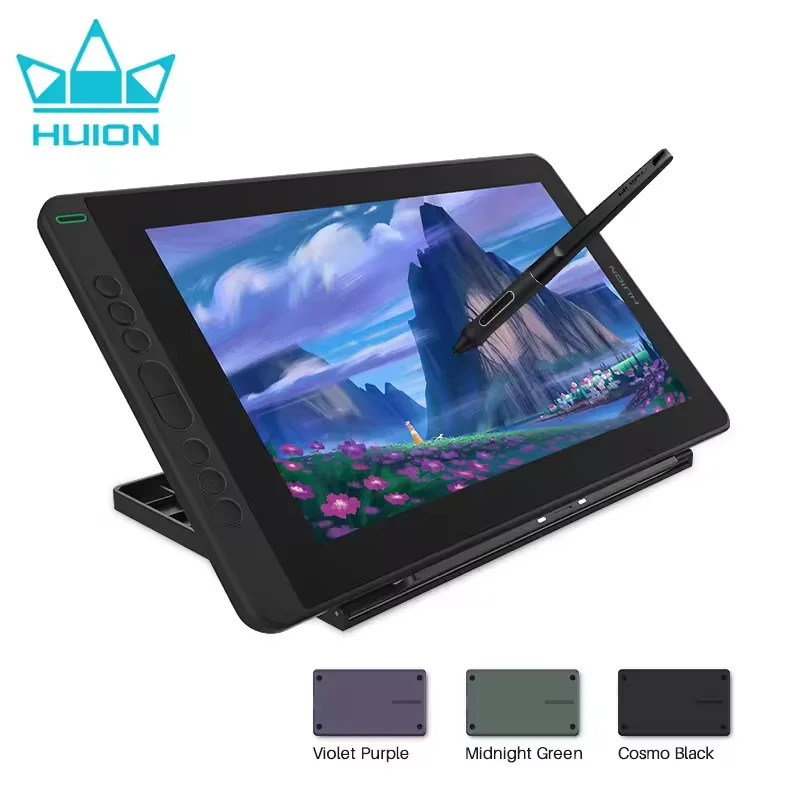
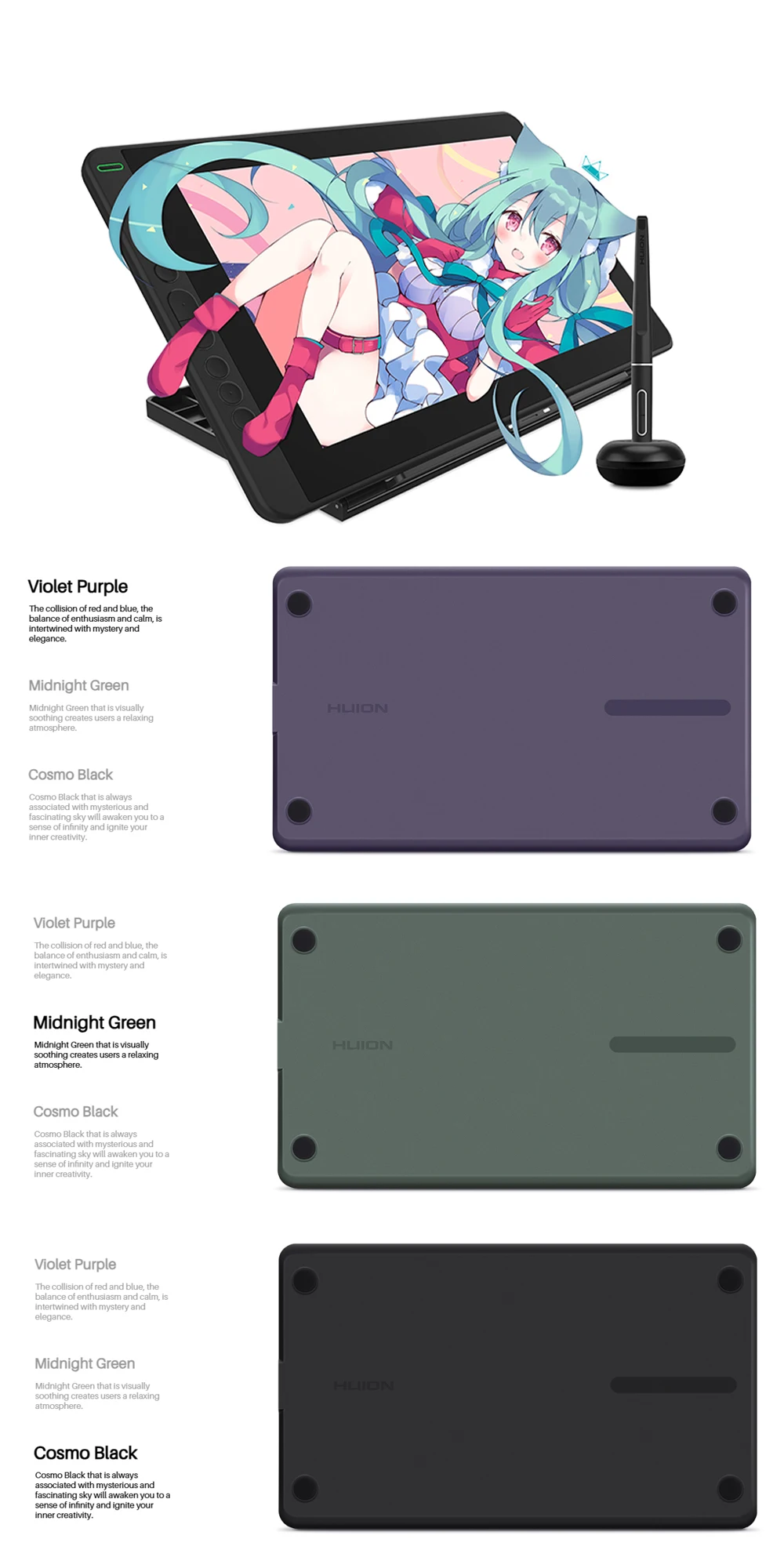
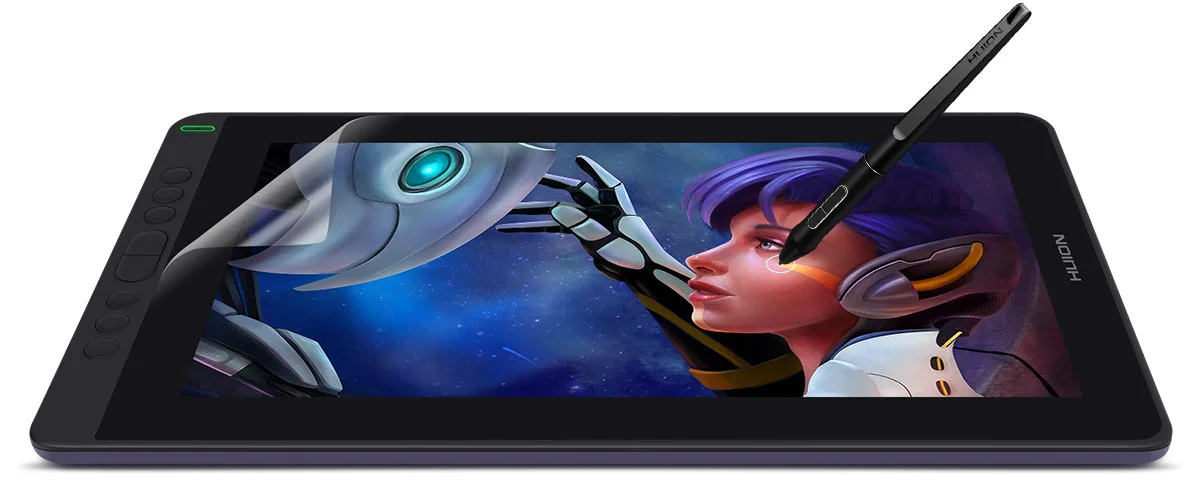
The creative Kamvas 13, with an eye-catching appearance, is available in 3 colors, Midnight Green, Violet Purple, and Cosmo Black, which offer more choices for users to fit their styles.
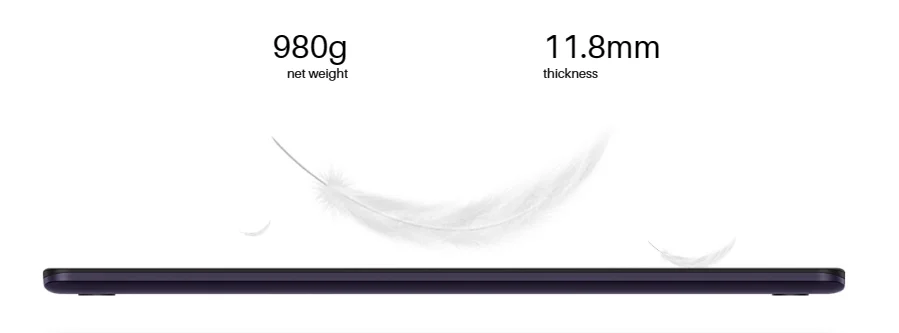
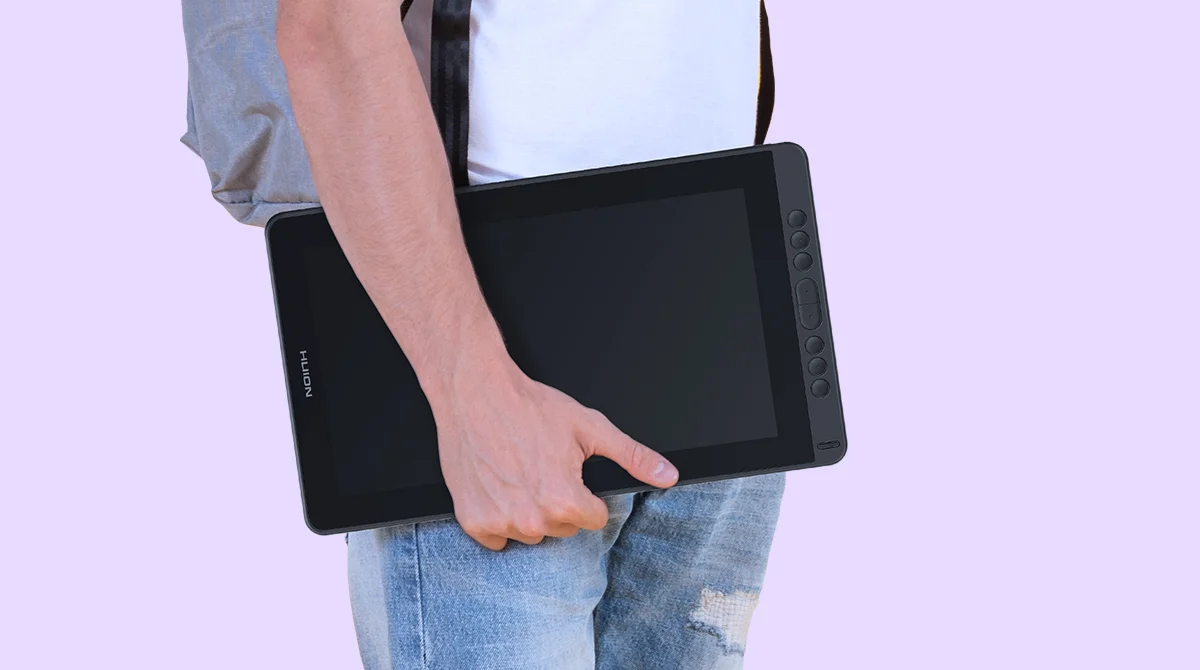
Light enough for better convenience.
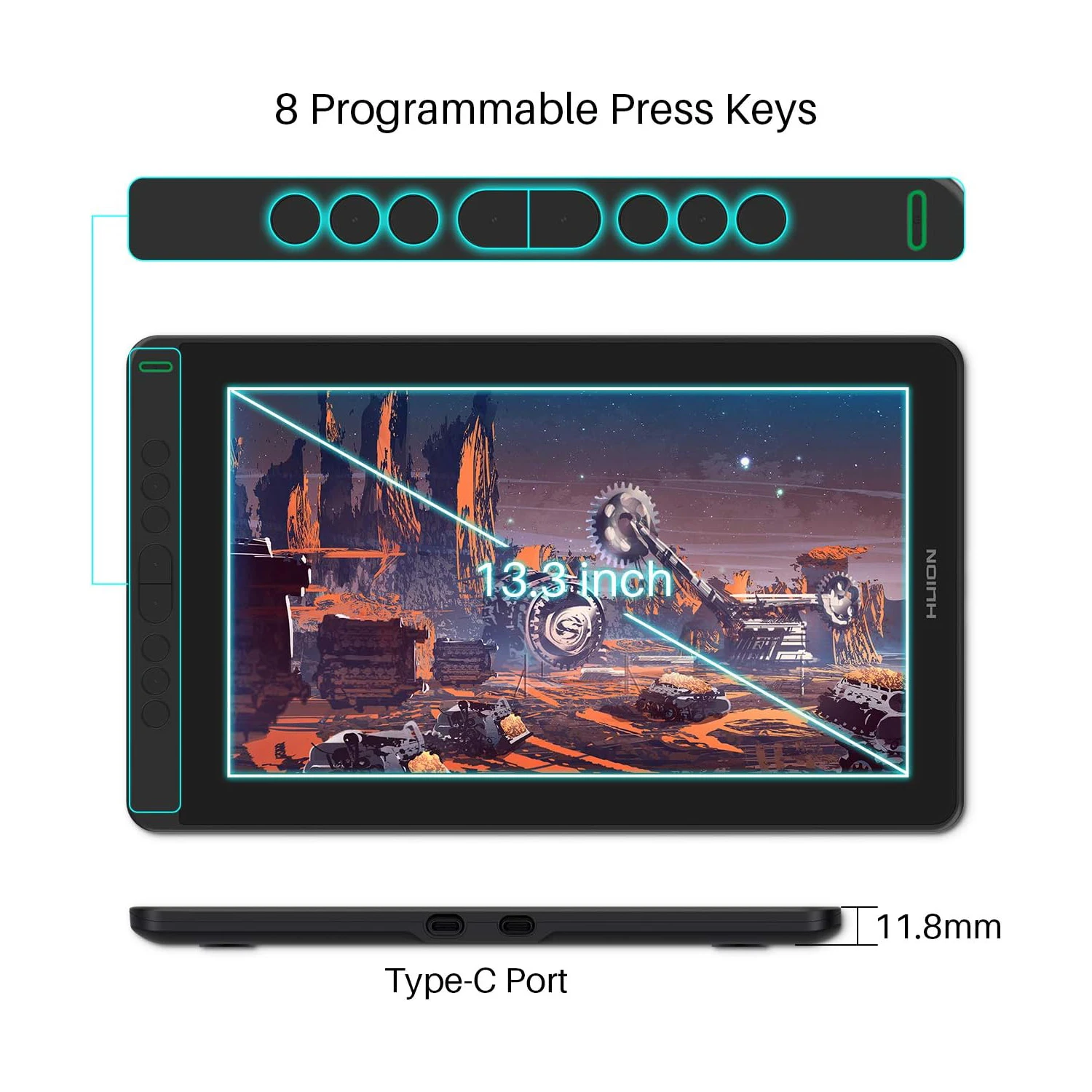
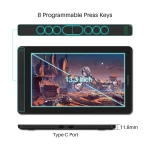
Kamvas 13 is 11.8mm ultra slim and weighs only 980g, which makes it an easy-to-carry pen display for outdoor drawing.
Easy and quick connection.
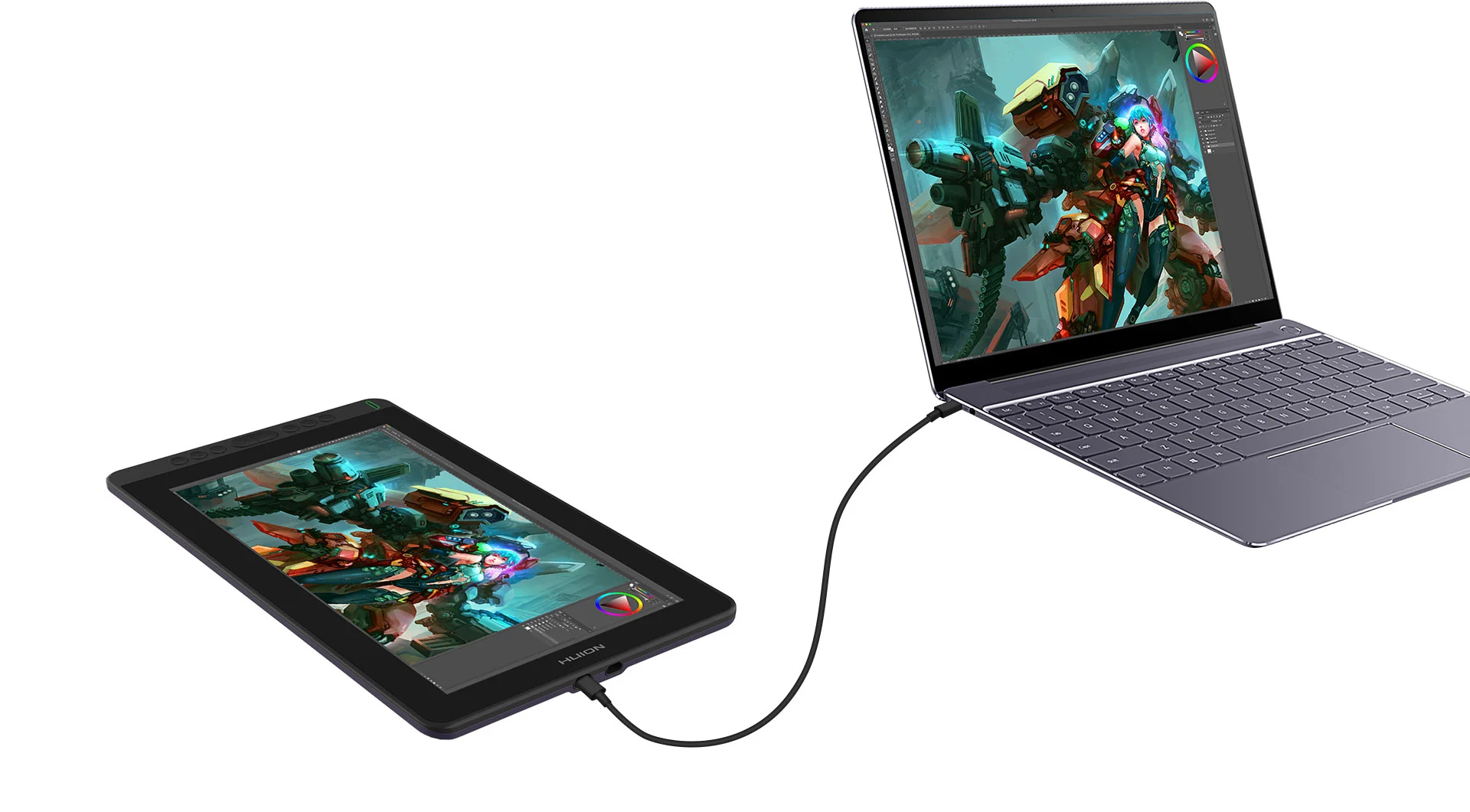
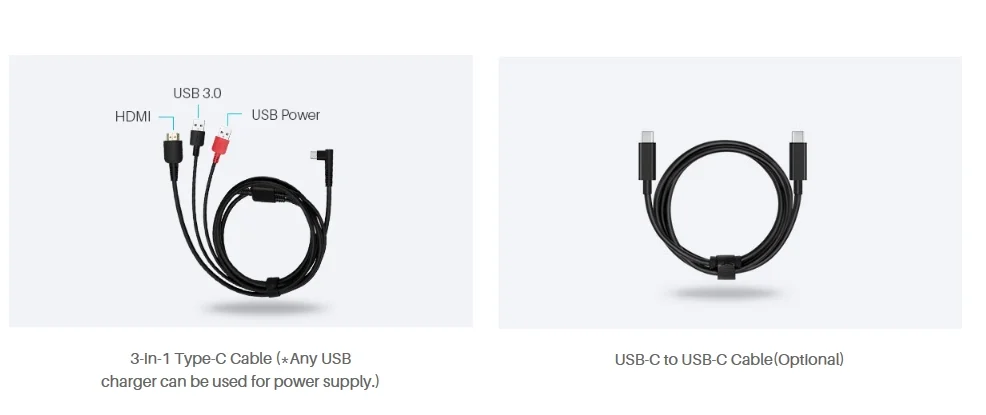
Besides a Type C to HDMI connection, Kamvas 13 also supports a Type C to Type C connection. Users can connect laptop that supports Type C input to Kamvas 13 easily without using a Type C to HDMI adapter.
Power it with ONE USB cable.
The low-power consumption design enables Kamvas 13 to be powered directly by a laptop. To power on the pen display, users only need to connect Kamvas 13 to a laptop that runs on 5 volts or above via a USB cable.
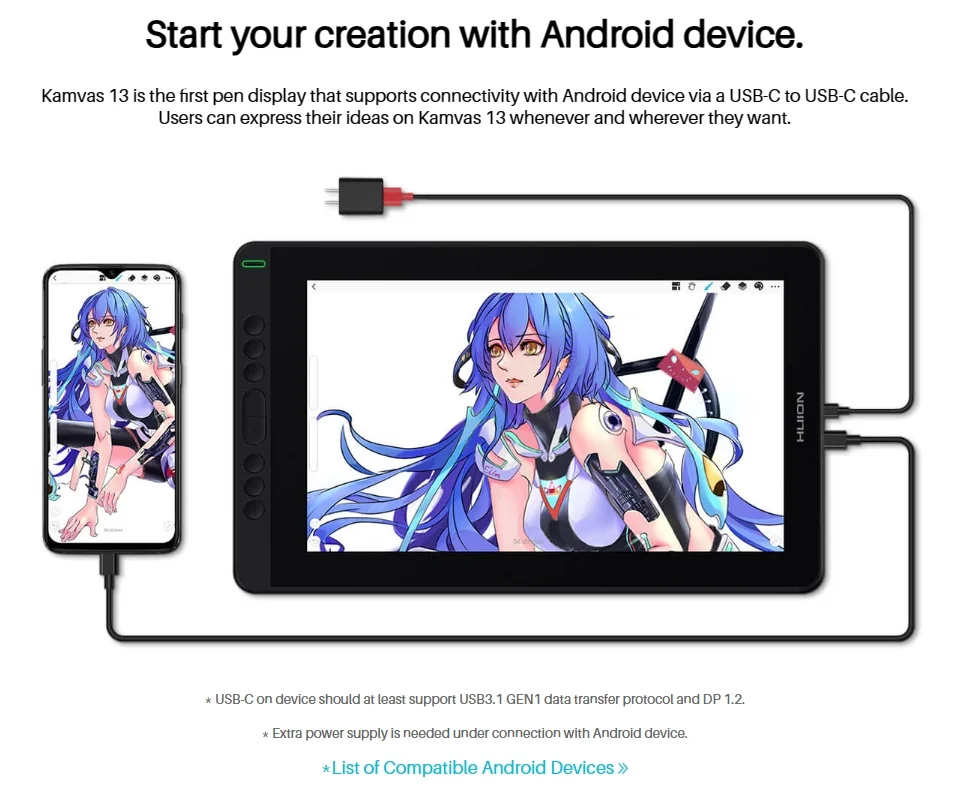
* USB-C on the device should at least support USB3.1 GEN1 data transfer protocol and DP 1.2.
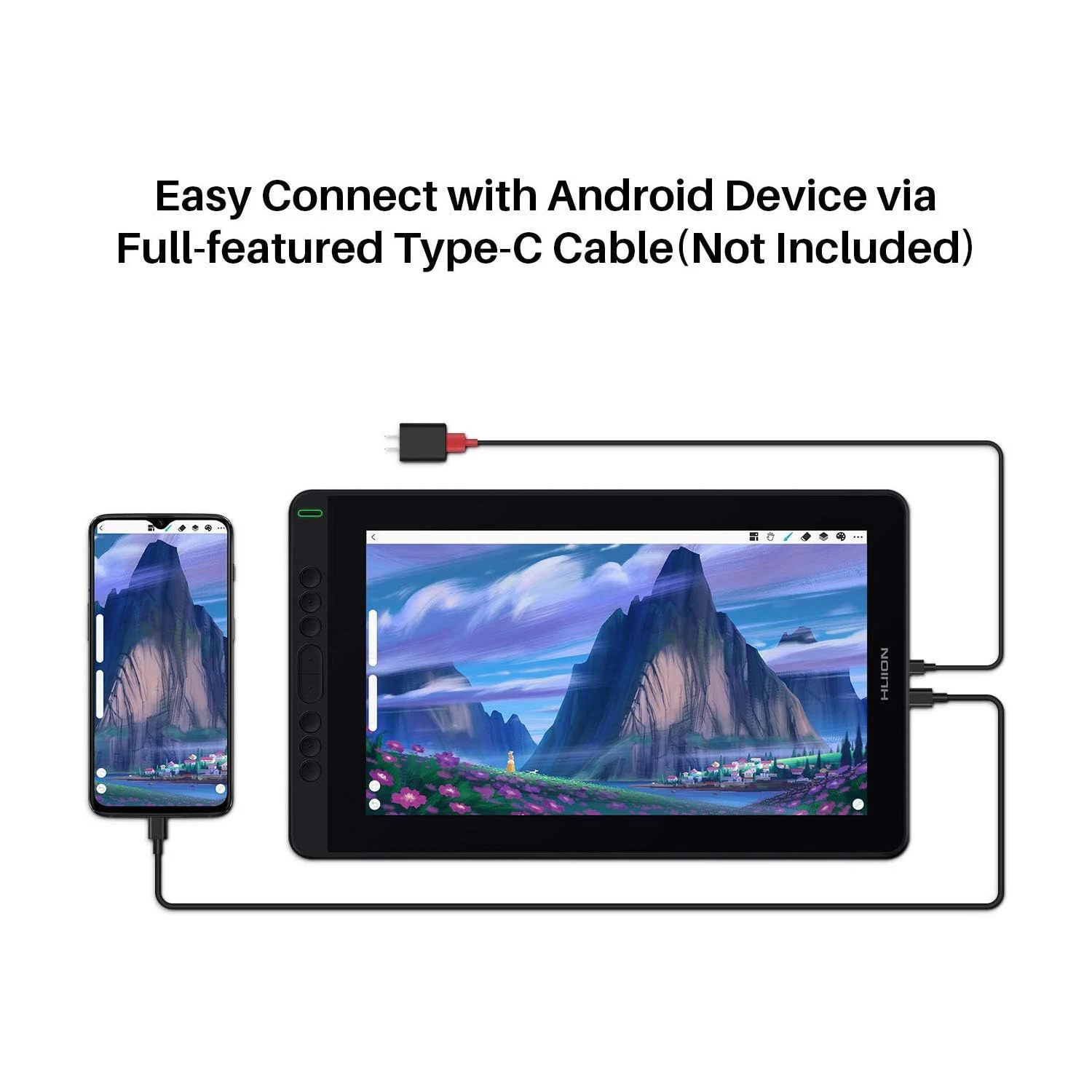
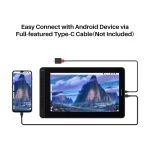
* An extra power supply is needed for connection with an Android device.
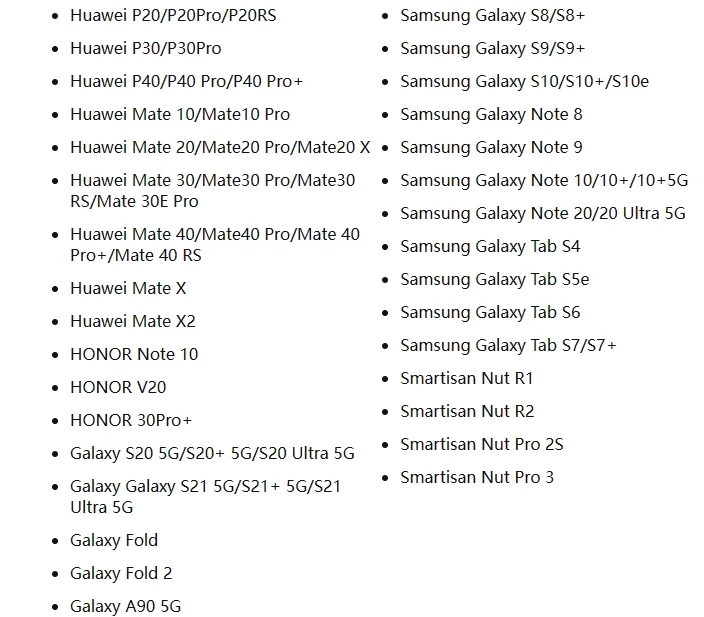
*List of Compatible Android Devices
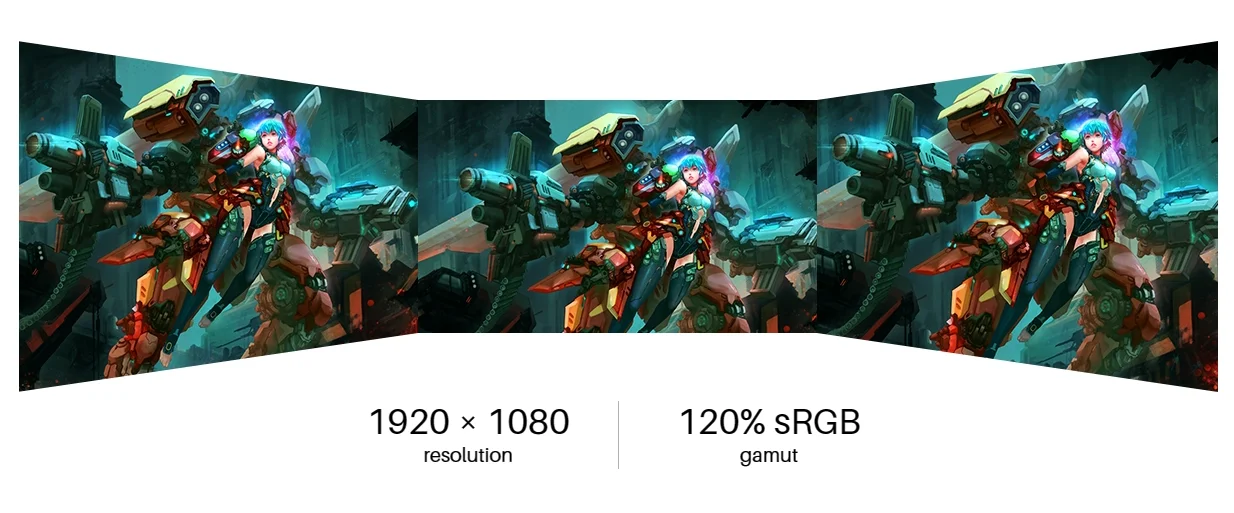
Gorgeous, stunning, and realistic.
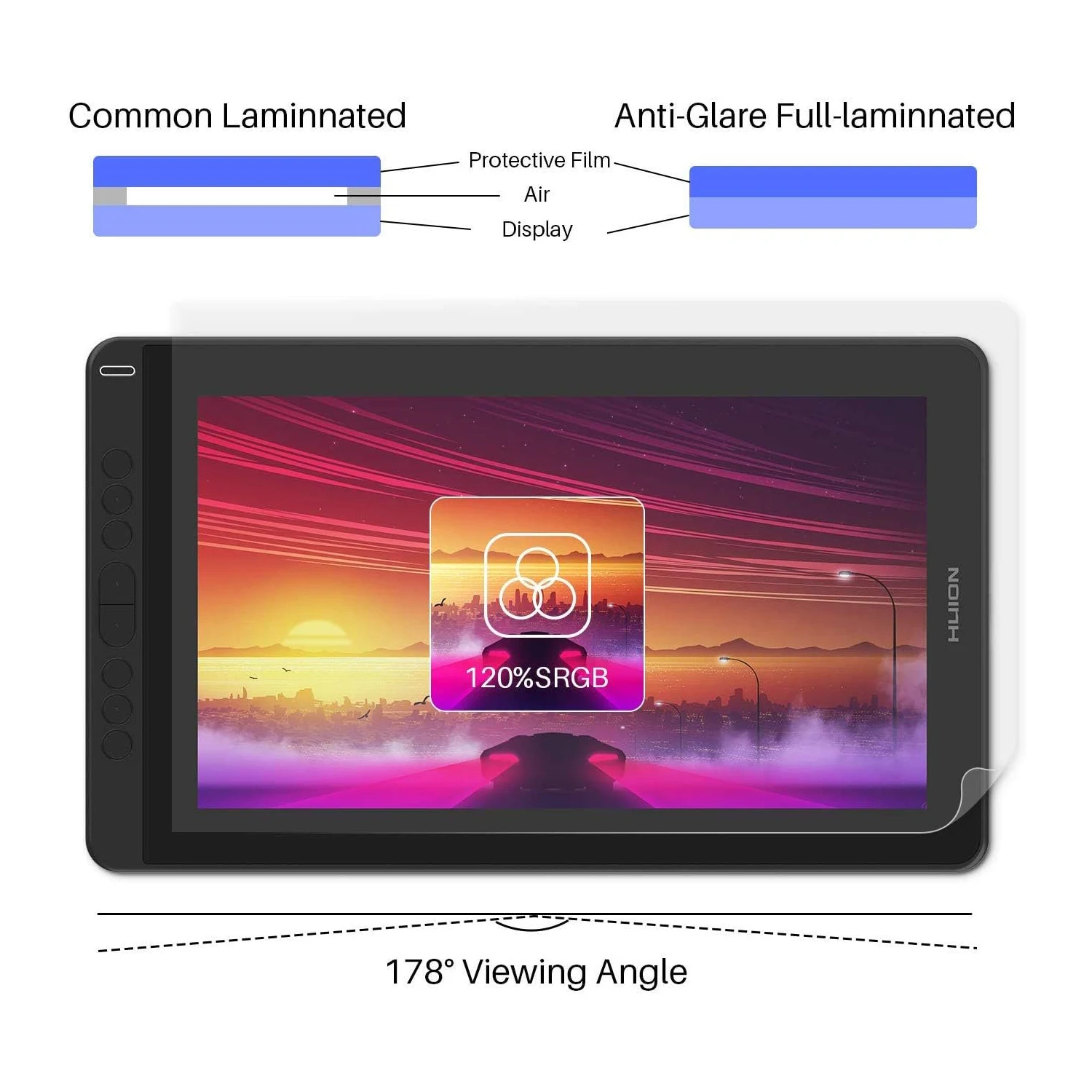
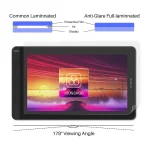
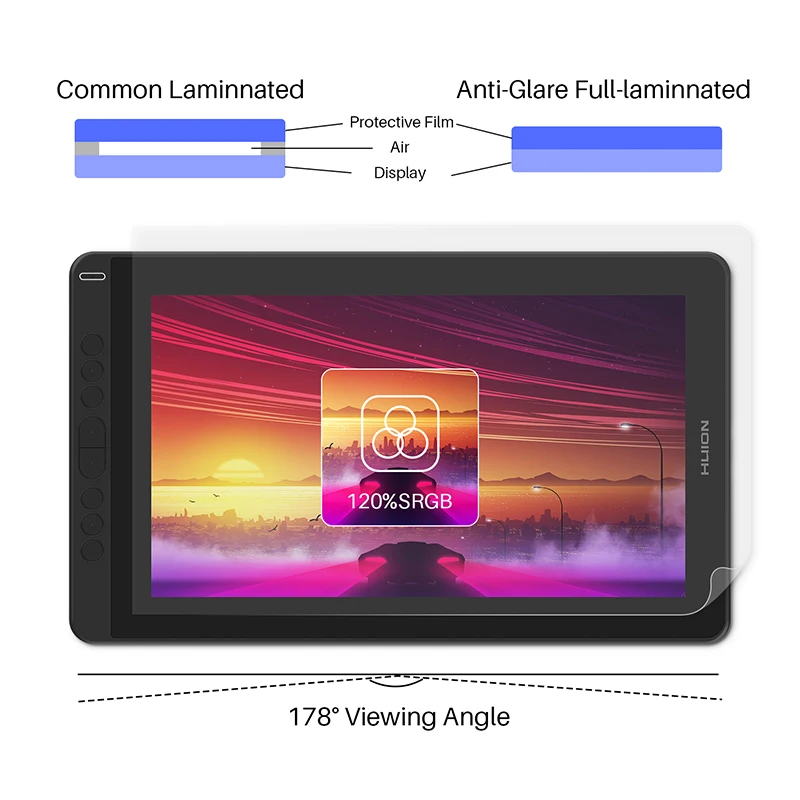
Full HD IPS screen that boasts 178° viewing angle and extra wide color gamut, 120% sRGB will bring you vivid images with vibrant colors and details.
Full lamination, minimum parallax.
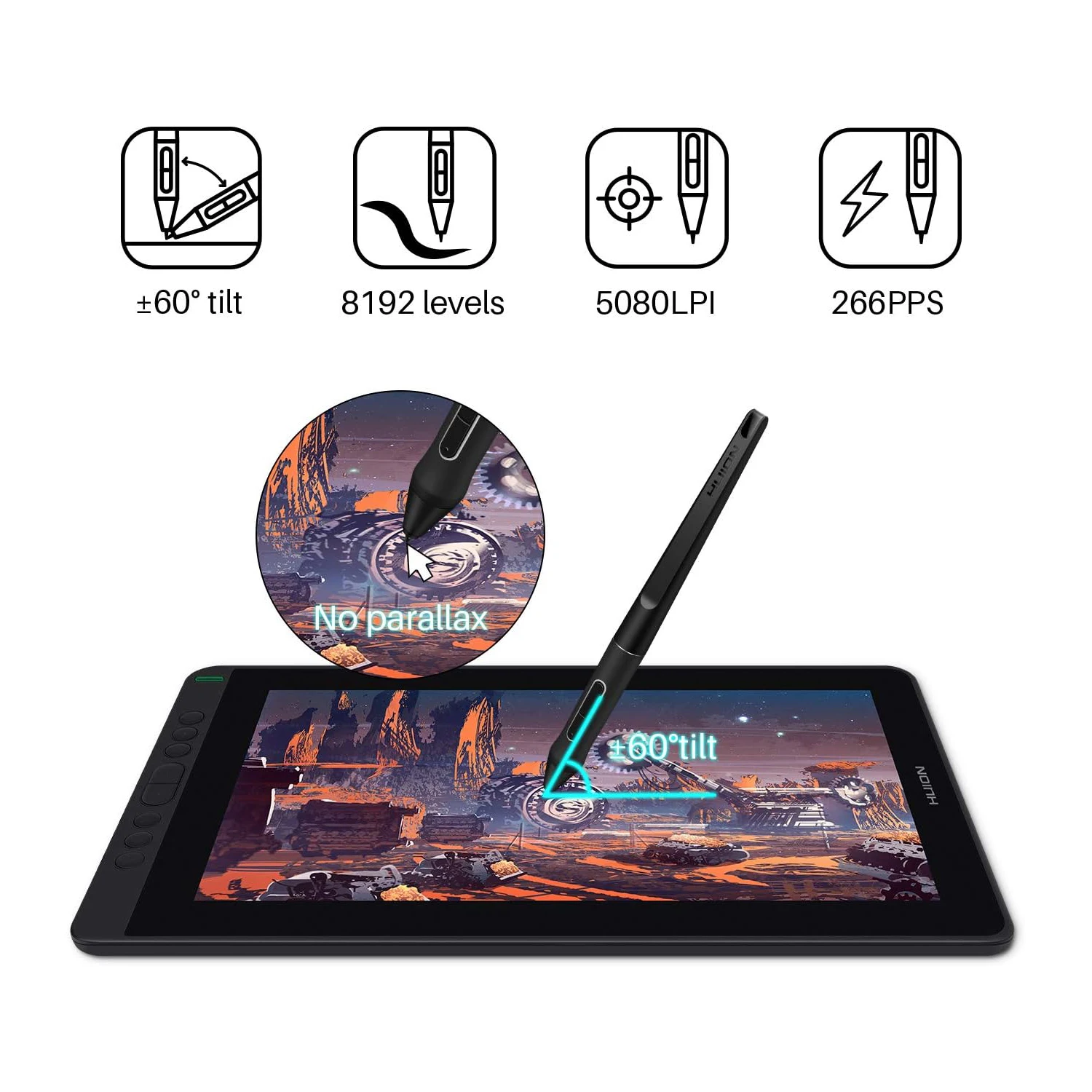
The full laminated screen with an anti-glare screen protector ensures a comfortable visual experience. The glass combines seamlessly with the screen to minimize the parallax, and at the same time, the anti-glare screen protector helps to keep your screen clear and transparent even under bright light.
Updated technology PenTech 3.0
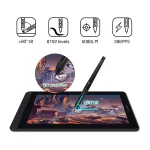
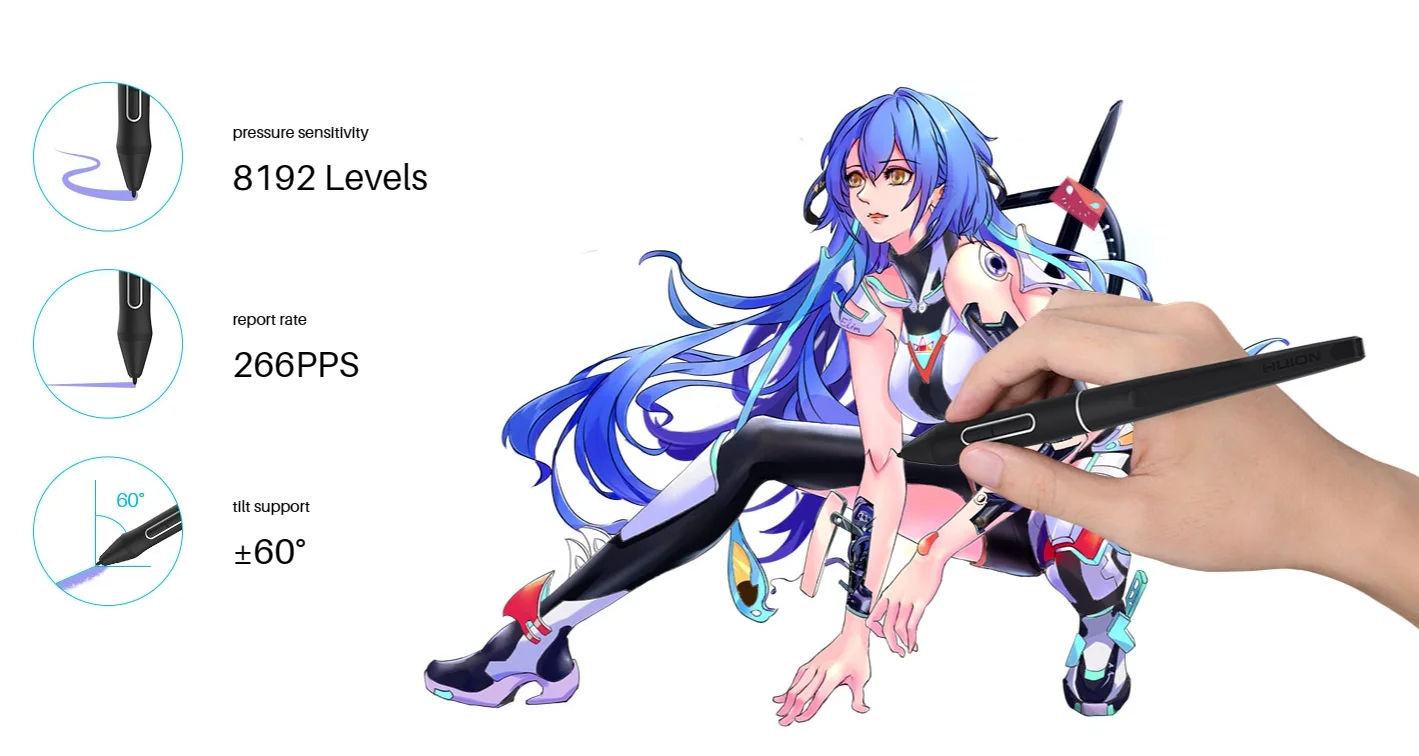
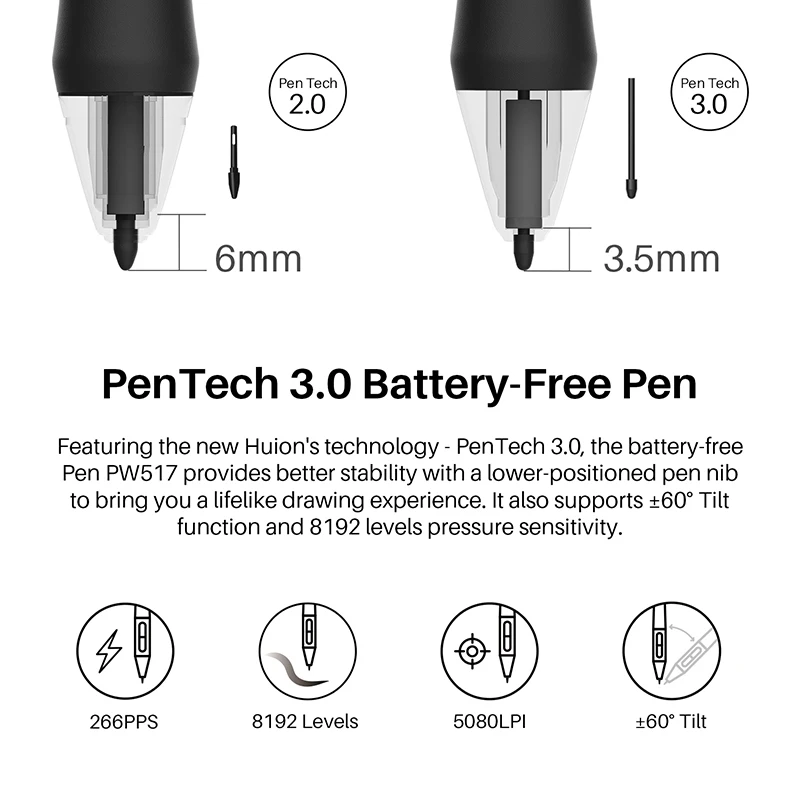
The upgraded pen technology enables pressure applied to be captured sensitively and lines input to be rendered in a more organic way. Battery-free pen PW517 is optimized with a highly sensitive and stable pen nib to ensure a more lifelike drawing experience as you’re using a regular ballpoint pen.
Pen Display or Pen Tablet?
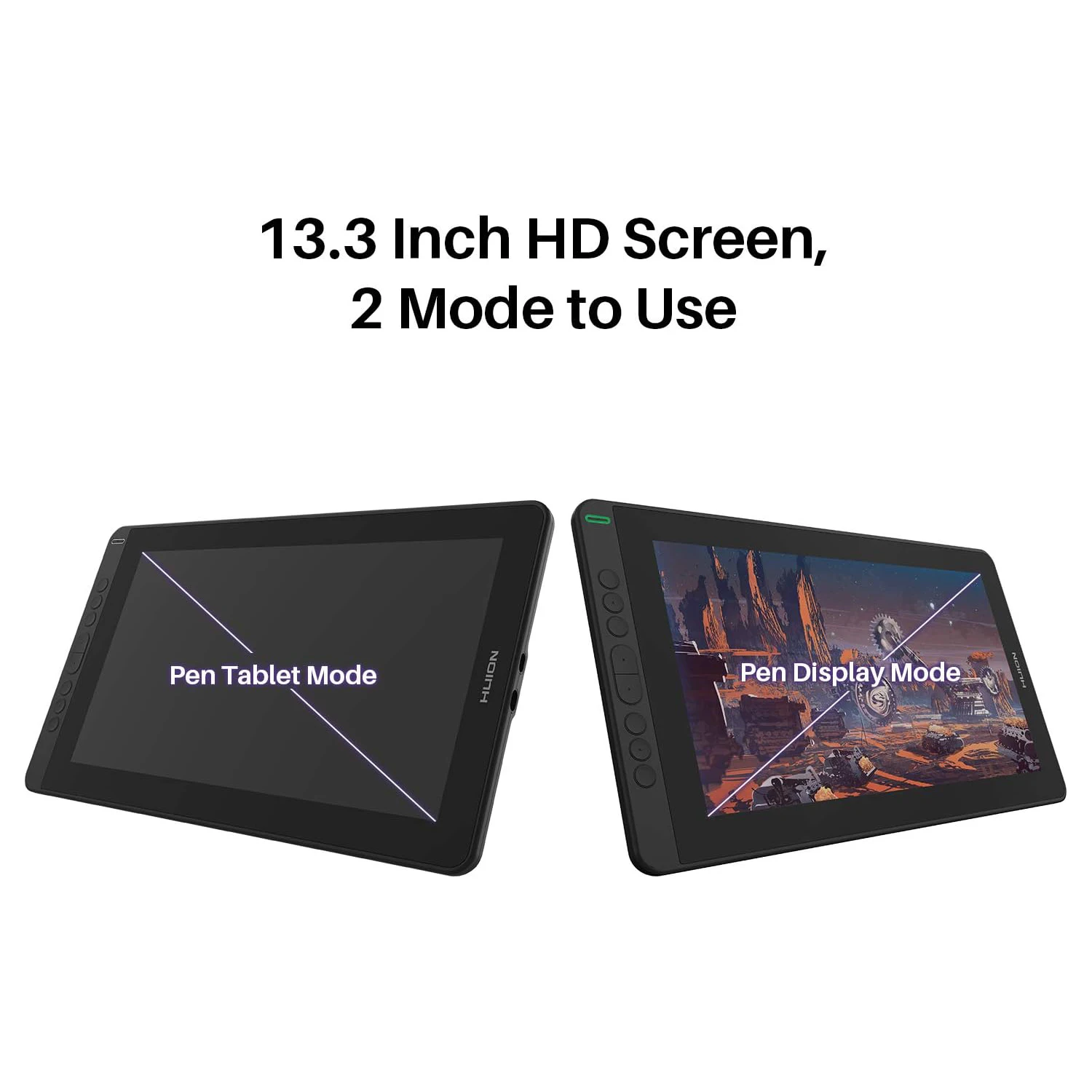
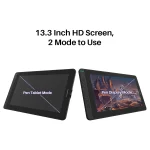
Kamvas 13 can be switched easily between two modes, Pen Display and Pen Tablet. Pen Tablet mode will be activated when the screen of Kamvas 13 is off, which not only helps to save power but also offers another way for users to express their creativity.
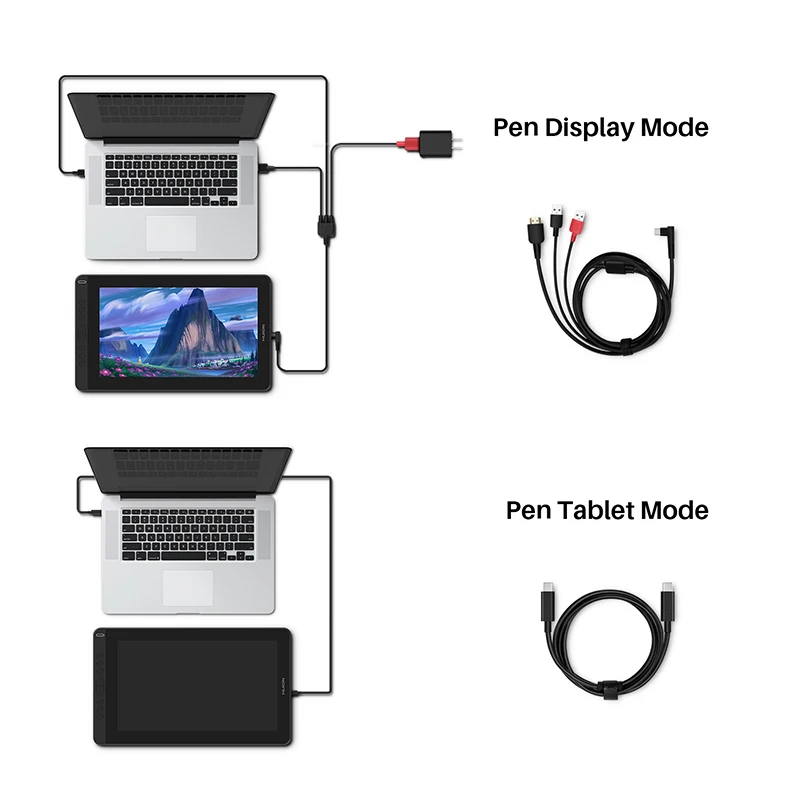
*Please power Kamvas 13 off and reconnect it to the laptop via a USB cable to activate the Pen Tablet mode.
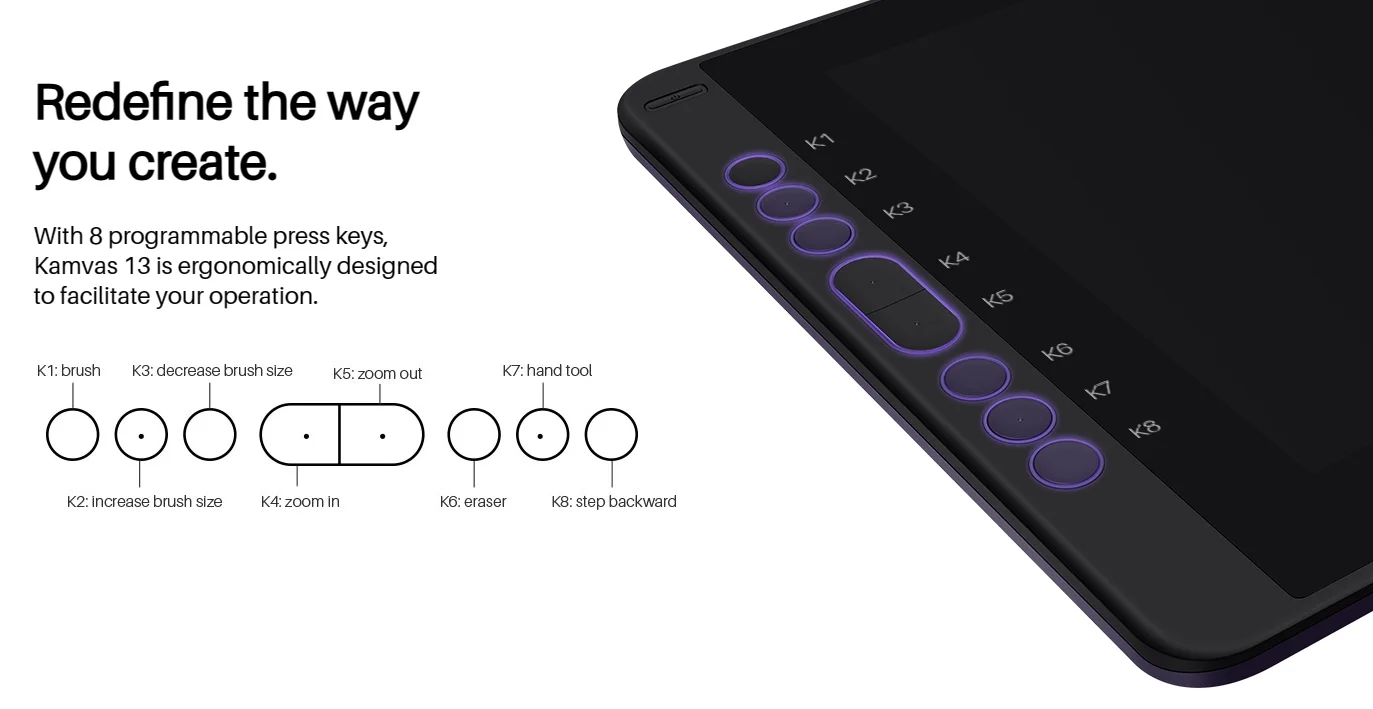
With 8 programmable press keys, Kamvas 13 is ergonomically designed to facilitate your operation.
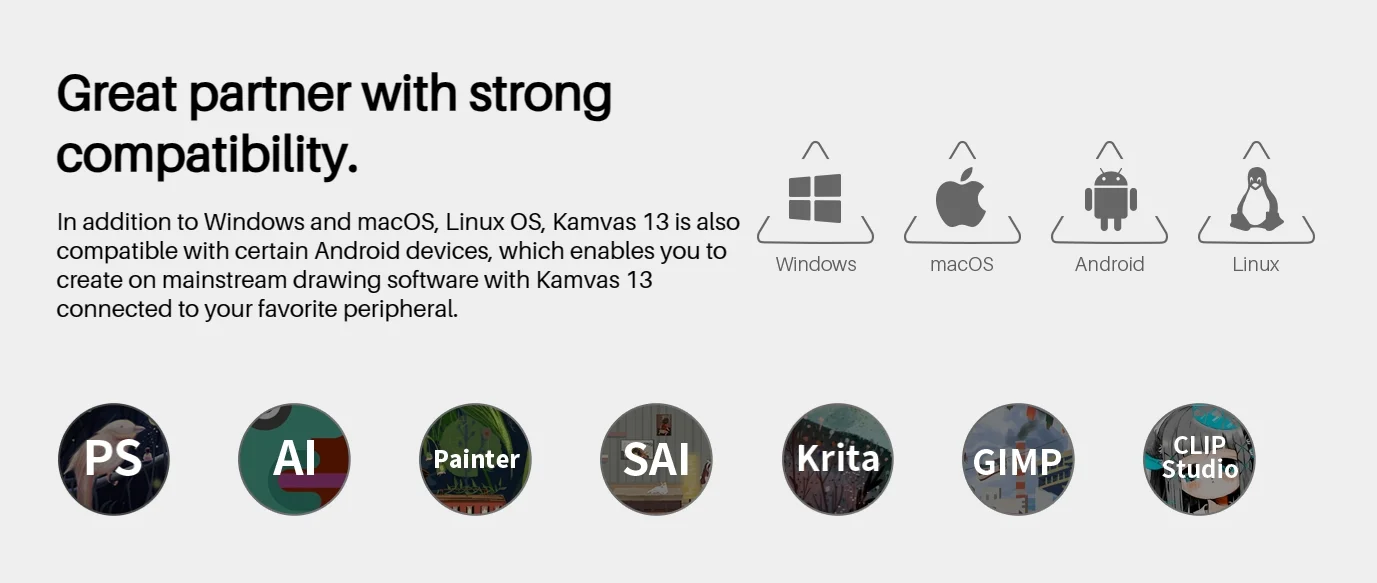
Great partner with strong compatibility.
In addition to Windows and macOS, Linux OS, Kamvas 13 is also compatible with certain Android devices, which enables you to create with mainstream drawing software with Kamvas 13 connected to your favorite peripheral.
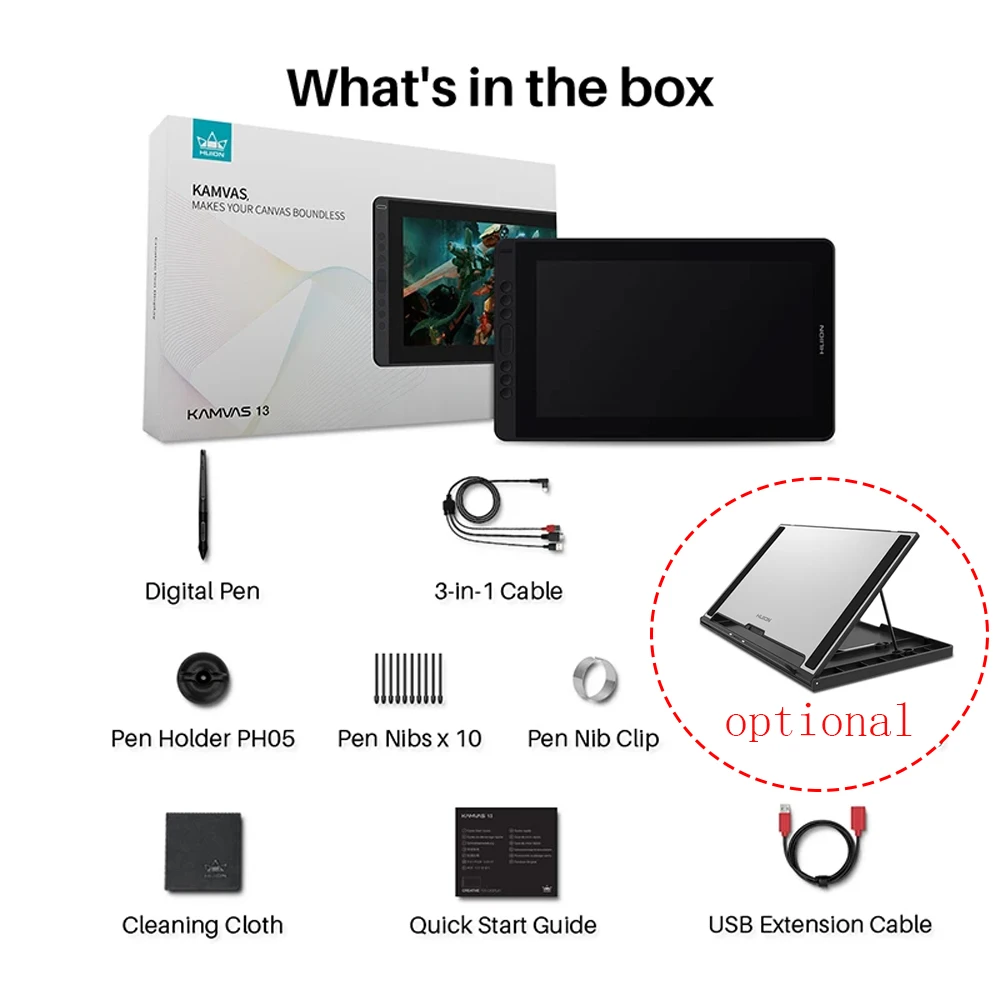
What is in the box? Kamvas 13 Pen Display, Digital Pen PW517, 3-in-1 USB-C Cable, Pen Holder PH05, Pen Nib x 10, Pen Clip Press Key, Cleaning Cloth, Quick Start Guide. (*Adjustable Stand is optional.)
Notice: It does not contain a full-featured Type C cable.
Important Reminders:
1. Huion Kamvas 13 Pen Display Tablet is not a standalone product. It has to connect a laptop or a desktop that runs Windows or mac system to work.
2. Tips for Windows users to install the Huion driver:
- Please uninstall other brands’ drivers on your computer first.
- Close all drawing programs and protection software before installation.
- Unplug the cable from the Huion drawing monitor.
- Download the driver from the Huion website and install it as an Administrator.
- Reboot the computer and wait until it finishes rebooting.
- Plug the tablet back in.
3. Pen Display Connection:
- Please make sure to completely plug the USB cable and the HDMI cable into the pen display. Make sure there is no gap left when cables are plugged into the pen display.
- If you connect it to a desktop, please plug the HDMI cable into the pen display graphics card directly.
- If there is no HDMI port on your computer, you need an extra HDMI adapter, for example: VGA to HDMI adapter, DVI to HDMI adapter, Thunderbolt to HDMI adapter, etc (depends on what ports are there on your computer).
- Better not use a USB to HDMI adapter, which is not good enough for video display.
4. Suggestions for Mac users:
- If the computer system is macOS 10.14 Mojave, please uninstall and reinstall the driver, and then allow the Huion driver in Security and Privacy.
- macOS Mojave 10.14 upgraded security permissions and may require adding newly installed software to the whitelist.
5. How to connect via 3-in-1 cable:
- When the voltage is enough, you can use HDMI plus USB-A plugged into your computer.
- When the voltage is low, you can use HDMI plus USB-A plus USB-A (Red) plugged into your computer.
- If your power connection is too far, you can use a USB-A (Red) to USB-A extension cable. The 3-in-1 cable supports a 5V 2A charger; any universal mobile charger can be used for power supply.
6. List of compatible Android devices:
- Samsung: Galaxy Note 8, 9, 10, 10+; Tab S4, S5e, S6
- Samsung: Galaxy S8, S8+, S9, S9+, S10, S10+
- Huawei: P20, P20 Pro, P20 RS, P30, P30 Pro
- Huawei: Mate 10, 10 Pro, 20, 20 Pro, 20x, 30, 30 Pro
- Honor: Note 10, V20
- Sony: Xperia XZ2
There are no reviews yet.